Using IQ
This section provides a comprehensive guide on how to interact with IQ, manage active conversation sessions, and handle system alerts within HCL Digital Experience (DX).
Features
IQ is an assistant purpose-built for HCL DX that understands DX-specific concepts, APIs, and workflows, and can both answer questions and perform actions directly on your DX system.
The available actions depend on the MCP tools deployed in your environment and the access level of the logged-in user:
- The standard IQ deployment includes a default set of tools. For more information, refer to AI model limitations.
- Certain actions are only available for specific roles. For example, creating or updating items may be restricted to users with the Editor role, while listing items can typically be performed with the User role. For details on roles and permissions, refer to Security roles.
Asking questions
You can ask IQ about any HCL DX topic to get concise answers and guidance. The assistant answers questions about content authoring, workflows, approvals, Digital Asset Management (DAM), site structure, pages, and navigation. It also provides guidance on components, presentation templates, personalization, targeting, syndication, delivery, configuration, and troubleshooting.
Performing actions
IQ can also perform actions directly on your DX system. When you give a direct instruction (for example, "Create a site area called News in the Web Content library"), IQ carries out the action using integrated MCP tools and reports the result.
Supported actions include:
| Category | Actions |
|---|---|
| Libraries | List all libraries |
| Site areas | List, create, and delete site areas |
| Content | List, create, update, and delete content items |
| Content templates | List, create, and delete content templates |
| Presentation templates | Create and delete presentation templates |
| Pages | List parent pages, create and delete pages |
| Projects | Create, delete, and publish projects, and add or remove project items |
| Search | Search content, collections, and assets |
| DAM | List, search, create, and view collections; list, search, view, and update assets, including keywords; view asset references; and list favorites |
Interface components
Regardless of the active display mode, the interface contains the following core components as mapped in this overview:
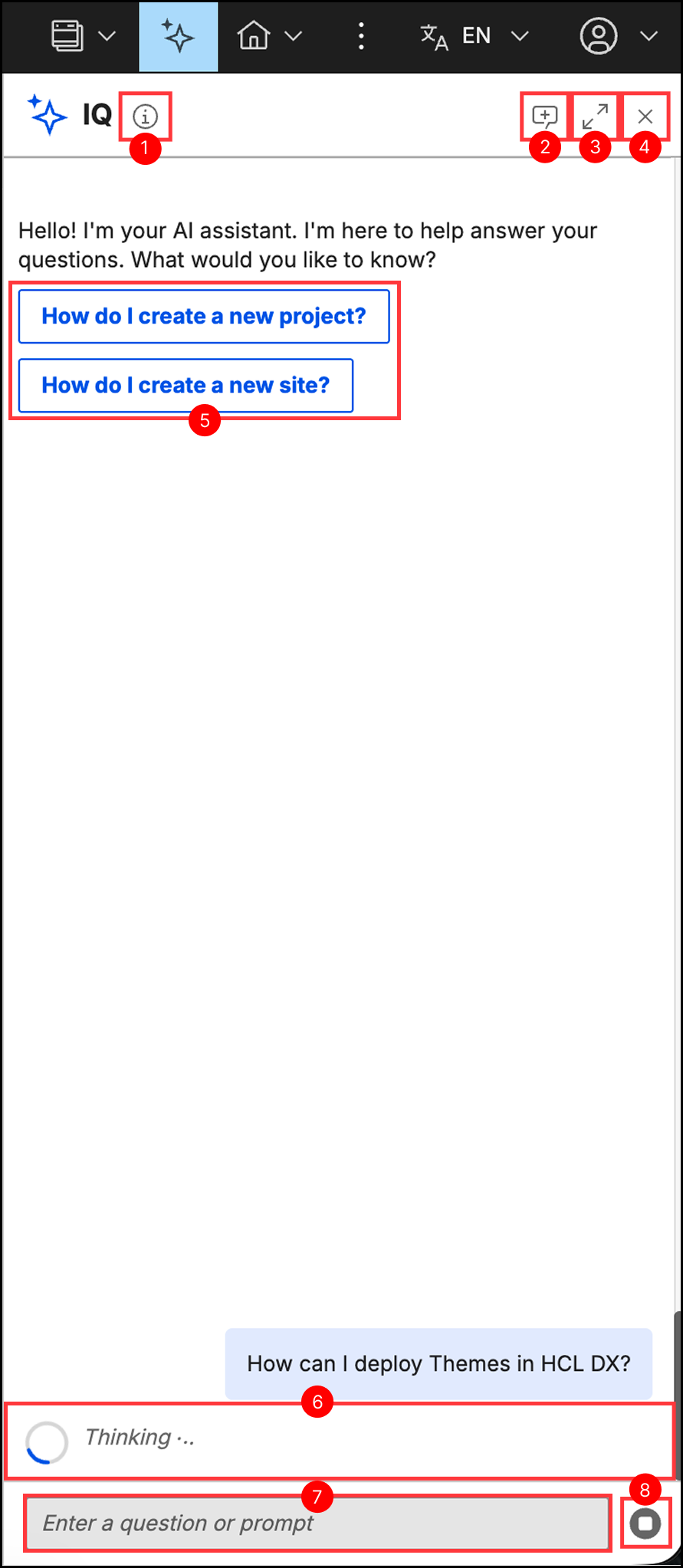
- AI disclaimer icon: Displays a tooltip with information about the assistant, including data privacy reminders and a warning to review AI-generated content before use when hovered.
- Start a new conversation button: Restarts the session and permanently clears the current chat context.
- Full view, Panel view, or Compact view button: Toggles between the standard view and the full view expanded workspace.
- Close button: Closes the assistant interface.
- Quick-chat prompts: Displays clickable prompt suggestions for common tasks to quickly initiate a conversation.
- Status indicators: Displays the processing state directly above the text input area. For more information about error indicators, refer to Troubleshooting IQ.
- Text input field: The area to enter questions.
- Send message or Stop request button: Sends the question to the assistant, or cancels the active request while a response is generating.
Sending requests
To submit a request, select one of the Quick-chat prompts to send a pre-configured prompt automatically, or enter a custom prompt in the text input field at the bottom of the interface and select the Send message button.
Your message appears in the chat timeline immediately while a "Thinking..." indicator shows that IQ is actively generating your response. Once IQ finishes generating, the indicator clears, and the finalized response populates the chat timeline using formatted rich text, lists, code snippets, or documentation links.
Managing conversations
Contextual memory
IQ retains conversational context across an active session. You can ask consecutive follow-up questions without restating baseline definitions or background details, such as asking "What are its main features?" immediately after a prompt about HCL DX.
Resetting a session
To clear the active timeline and reset the memory context, select the Start a new conversation button in the header bar, and then select Proceed.
Warning
This action permanently deletes the active conversation history. Chat history currently does not persist across sessions, so cleared conversations cannot be recovered.
If IQ is open in multiple windows or tabs, a warning message may briefly display in the secondary instances before resolving automatically.

Stopping a request
To cancel an active response, select the Stop request button inside the text input area. The assistant stops generating content, displaying "Stopping the response. Please wait..." followed by "The response was stopped." Your original prompt remains in the text input field so you can quickly modify and resubmit it.
Workspace layouts and alerts
Expanding the view
To improve readability for dense text or large code blocks, select the Full view button in the header to expand the chat workspace. To return to your previously selected layout, select the Panel view or Compact view button in the header.
Notification badges
If IQ finishes generating a response or receives a system update while the chat interface is closed, a notification badge displays on either the toolbar button or the floating icon, depending on your current view. Opening the interface automatically clears the badge and scrolls to the new item.

