Using the Editor
This topic provides details on using the {{ shortProductName }} Editor.
Editor Overview
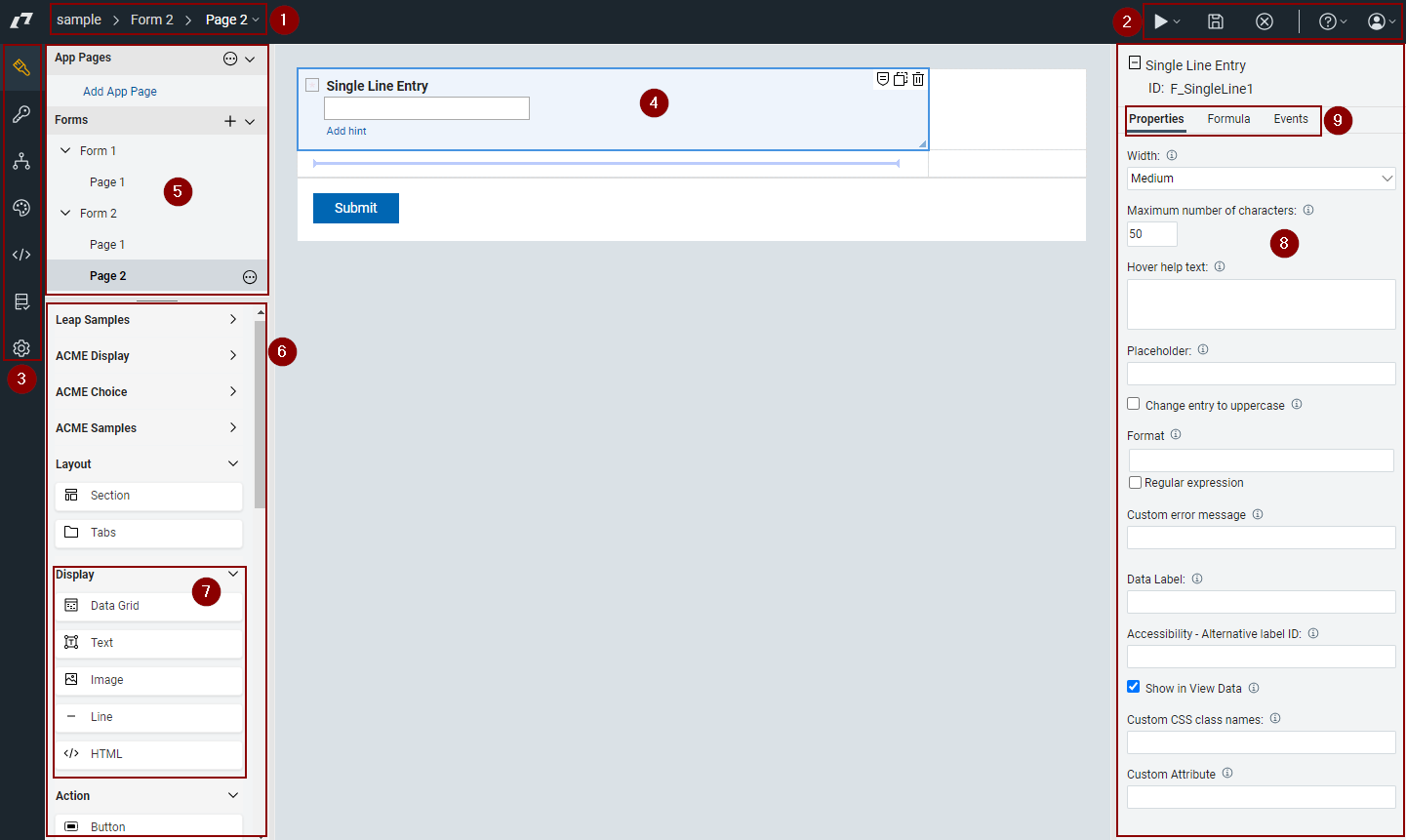
- Navigation breadcrumb. You can click the last item to change the page on the canvas.
- Save, Preview, Close and Info links.
- {{ shortProductName }} Navigation. Use this to move around to the different pages of {{ shortProductName }}: Design, Access, Workflow, Style, Events, Validation, and Settings.
- Design Canvas. This space represents your form. It is made up of rows and columns. Only 1 item may be placed into a cell. You can add or remove rows/columns by clicking on the buttons at the outer edges of the canvas.
- Outline View. This shows the forms, pages, app pages and tables. Clicking on an object in this view will reveal its properties in the property pane.
- Item Palette. Click an item for it to appear in the currently selected cell or click and drag to the desired cell.
- Palette drawer. Items have been grouped into categories and placed in a drawer that can be collapsed.
- Properties Pane. Each item has properties that can be set. Clicking on an item will reveal its properties in this pane.
- Item configuration tabs: Properties, Formula, Events. These tabs reveal functionality that can be configured for the selected item.
Additional Topics
-
Basic Concepts
Basic concepts related to using the editor. -
Palette items
A description of all the palette items. -
Copying items
Items may be copied from one form to another form within any application. -
Moving items on a form
Form items are not static after they are added to a form. You can move items around on a single page, duplicate form items, and move items between pages on your form. -
Creating an accessible application
When you create a form or application, the following information helps you design an accessible form for users with disabilities. -
Enabling dynamic layout
When you build applications, you can now set the display width of your {{ shortProductName }} application. Setting this feature reduces or removes the need for horizontal scrolling when you have an unknown or limited amount of space, such as when the application is displayed on a mobile device. -
Adding specialized form items
You can use specialized form items to style text, echo text back, create dynamic lines, or add HTML. -
Managing the files associated with your application
You can upload a variety of files, such as images, for use with your application. Managing these embedded files is done in the Files section of the Settings tab
Parent topic: Building Apps